 Boarding
 Daycare
 Grooming
 Training
 Dog Park / Dog Bar
 Enterprise

Whether it's the busy holiday season or the dog days of summer, finding simple ways to surprise and delight your best customers can go a long way toward building loyalty and filling your schedule.
There are three powerful tools you can start using today to reward your VIP pet parents without adding extra busywork for your team:
- Store credit
- Customer Spend Report
- Loyalty Reward Points
All three are built right into Gingr, so you can manage everything in one place, from reservations and payments to recognition and rewards. In our latest webinar, we walked through these features so you're set up for success. Whether you attended live or need a recap, we've compiled the highlights for you below.
Revisit the webinar here

1. Store Credit: Your Flexible 'Gift Card' for Pet Parents
Think of store credit as your built-in gift card system. It’s tied to the owner in Gingr and is easy to see and use from day to day.
How store credit works in Gingr
-
A green account balance icon appears on the owner’s profile when they have store credit, along with their current balance.
-
From the shopping cart, you can:
- Search and add the owner
- Add “Store Credit” as a line item
- Enter any amount (e.g., $60)
- Check out as usual
We walked through an example where an owner already had $40 in store credit. He added $60 more in the cart, checked out, and the account instantly showed a $100 total store credit balance.
You can:
- Sell store credit like a gift card (perfect for holiday gifting or “pet grandparents”).
- Comp store credit with the Admin Credit Comp Tool when you want to thank a loyal customer or fix a less-than-ideal experience.
Once it’s on the account, store credit can be used as a payment method for:
- Packages
- Retail
- Reservations
- And more
Your team can even split payments by applying store credit first, then collect the remaining balance via card or cash.
Pro Tip: In Admin > Payment and Purchase Options, turn on “Allow customers to purchase store credit” to let pet parents buy it directly through the customer portal. Great for holidays, birthdays, and last-minute gifts.
One important limitation
At this time, store credit cannot be used toward subscriptions or memberships. Because subscriptions and memberships require a card on file for automatic processing, they can’t be paid with store credit. Those recurring charges will still run on the stored card.
2. Customer Spend Report: Find Your VIPs in a Few Clicks
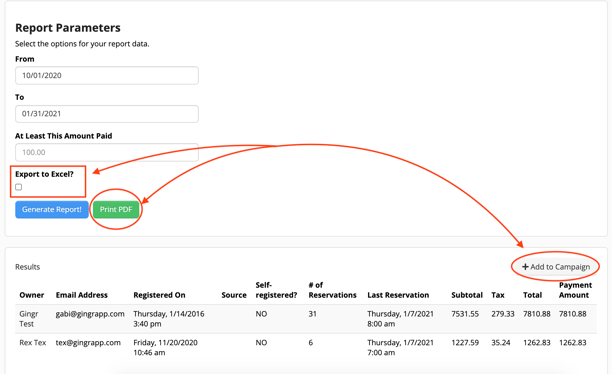
Want to reward your top customers but not sure who they are? That’s where the Customer Spend Report comes in. Gingr already centralizes your payments and reporting so you don’t have to juggle multiple tools, and this report is one of the most useful for loyalty and gifting.
How to run the Customer Spend Report
- Click the book icon and go to Reports.
- Search for “Customer Spend”.
- Choose a date range (for example, Stephen used December 2024 through today).
- Optionally, set a minimum spend threshold.
- Click Generate Report.
You’ll see a list of customers with details like:
- Total amount spent
- Tax paid
- Last reservation date
- Number of reservations
- Whether they self-registered
- Source (and more)
From there, you can print as PDF, export to Excel, oradd customers directly to a marketing campaign.
Rewards using the Customer Spend Report
Once you’ve identified your highest-spending or most frequent visitors, you can try out some of these ideas:
- Comp store credit to say thank you (e.g., $25 for your top 20 spenders this year).
- Add them to a loyalty email campaign announcing: “You’ve unlocked a $10 credit—thank you for being part of our pack!”
- A VIP appreciation week with double points or a small bonus add-on.
- Invite them to early booking for holidays and peak seasons.
Because Gingr includes built-in marketing tools and integrations, you can send targeted email or SMS campaigns to just those customers—no extra software needed.
3. Loyalty Reward Points: Automated Everyday Appreciation
Store credit and reports are fantastic, but what if you want something more automatic and ongoing? That’s where Loyalty Reward Points can come into play.. They help you build customers for life with simple, trackable rewards that don’t create extra manual work for your staff.
How point earning works
On a pet’s profile, you’ll see a current point balance section. With Loyalty Reward Points enabled:
- Every dollar spent at your facility earns points (based on your settings).
- Points accumulate over time and can be redeemed for store credit.
- You can opt individual owners in or out if they don’t want to participate.
Only your business can redeem points, so pet parents will contact your team when they’re ready to cash in. That gives you a great excuse for a friendly conversation and upsell opportunities.
You can also:
- Add points manually as a thank you.
- Remove points if needed (for example, after a policy issue).
Setting up Loyalty Reward Points in Admin
Go to Admin > Loyalty Reward Points to customize:
- Point expiry:
- Default is
0(points never expire). - You can set a number of days if you want points to expire after, say, 365 days.
- Default is
- Automatic opt-in:
- Turn on auto-enrollment for new owners.
- Or keep it off and manually opt in your most engaged customers.
- Global enable/disable:
- You can disable rewards for all existing owners, then re-enable later. This is a big switch, so use it intentionally.
Most importantly, you’ll configure your reward tiers. In our demo, the tiers looked like this:
- 100 points → $10 store credit
- 200 points → $25 store credit
This encourages pet parents to save up for a better reward, which keeps them coming back and increases their lifetime value with your business. You can add as many tiers as you like. Just click Add, set the point threshold, and choose the store credit amount.
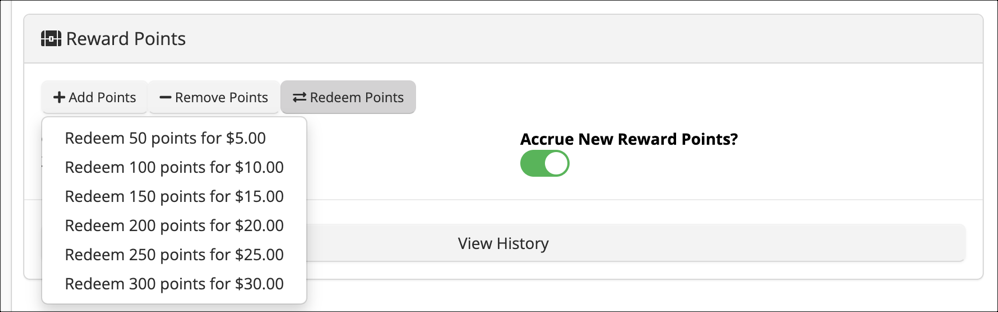
Redeeming points (and where to do it)
You can redeem points in two main places:
1. From the owner’s profile
- Scroll to the reward points section.
- Click Redeem Points.
- Choose which tier to apply (e.g., redeem 200 points for $25 store credit).
- The points balance drops, and the owner’s store credit balance increases.
2. From the shopping cart
- Add the owner to the cart.
- Use the Redeem Points option directly from the cart if they ask, “Can I use my points today?”
Gingr also provides a View History option so you can see:
- How points were earned (which invoices, what dates).
- When they were redeemed.
- Any voided or removed points.
This transparency helps you maintain trust with pet parents and keep your team aligned.
FAQs from the Webinar
A few great questions came in during the session. Here’s a quick recap of the answers:
1. Can store credit be used for subscriptions or memberships?
Not at this time. Subscriptions and memberships require a card on file because payments run automatically on a schedule (weekly, monthly, yearly). Store credit can’t be applied to those recurring charges.
2. Does paying with store credit still earn reward points?
Yes. Gingr doesn’t distinguish between payment methods when awarding points. If you pay an invoice with store credit, that spend still earns reward points, which means customers can “double dip” a bit:
- Earn store credit
- Use store credit
- Earn more points
- That can be a fun perk, but it’s good to be aware of it when designing your tiers and promotions.
3. Will refunds remove points that were earned?
Yes. If you issue a refund on an invoice that generated points, you’ll see voided points in the history. Those points are deducted to keep everything accurate.
4. Can customers redeem their own points online?
Not currently. Only your team can redeem points, either from the owner’s profile or from the shopping cart. That way, you stay in control of when and how rewards are applied.
Additional learning links:
How to Put This into Action This Week
Here’s a simple, three-step plan you can use right away, especially during busy holiday or peak seasons:
1. Run a Customer Spend Report for the past 6–12 months. Identify your highest-spending or most frequent customers.2. Decide on a reward structure. Comp a set amount of store credit for your top customers. Fine-tune your loyalty tiers to match your margins and goals.
3. Build a quick campaign in Gingr. Use built-in email or SMS to let VIPs know they’ve received store credit or have enough points to redeem. I Invite them to book their next stay, grooming appointment, or training session.
You’ll thank your most loyal pet parents, encourage repeat bookings, and keep operations running smoothly. That means more tail wags and less busywork!
Missed the Webinar? Here’s What’s Next
Revisit the webinar for a deeper dive!
Already a Gingr customer? Log in, head to Reports and Admin > Loyalty Reward Points, and start setting up your own reward strategy.
Not using Gingr yet? Our software is designed to help pet-care businesses thrive with tools that maximize revenue, optimize operations, and build customers for life.
Join the pack and book a demo to see how store credit, reward points, and powerful reporting can help your business reach its full potential.

Subscribe to the Gingr Blog

.svg)