 Boarding
 Daycare
 Grooming
 Training
 Dog Park / Dog Bar
 Enterprise

Every pickup comes with some version of the same question from a pet parent: "How was he today?" Gingr's Report Cards give your team an easy way to already have the answer ready — complete with notes, photos, and video from the day.
Create and Send Report Cards
.svg "Consistent updates builds trust and repeat visits (4)")
This guide walks through everything you need to know, including:
- How to set up and customize your Report Card fields
- How to create, edit, and send a Report Card
- How to view what pet parents see
- Report Cards FAQ
How to Set Up and Use Report Cards
Get Started:
Nothing needs to be done to "turn on" the Report Card feature — it's ready to use in every Gingr account. Once created, a report card is automatically linked in the customer's checkout email, or you can send it directly via email or SMS any time before checkout.
Before your first send, confirm:
- Send checkout email is enabled (Admin » System Email)
- Send checkout SMS is enabled if you want text delivery (Admin » System SMS)
- Global Email/SMS settings aren't disabled — Report Cards won't send at all if they are
Photos and videos are ready to go and visible in the Customer Portal as soon as they're uploaded.
Customize Your Fields:
Once you're set up, the next step is customizing your fields, so they sound like your business.
Edit fields under Admin » Report Card Settings » Report Card Form. Four field types are available:
- Text Input — single line, up to 255 characters
- Multi-Line Input — longer, formatted text
- Tags — multi-select options
- Dropdown — single-select options
Here are a few field options other Gingr customers use:
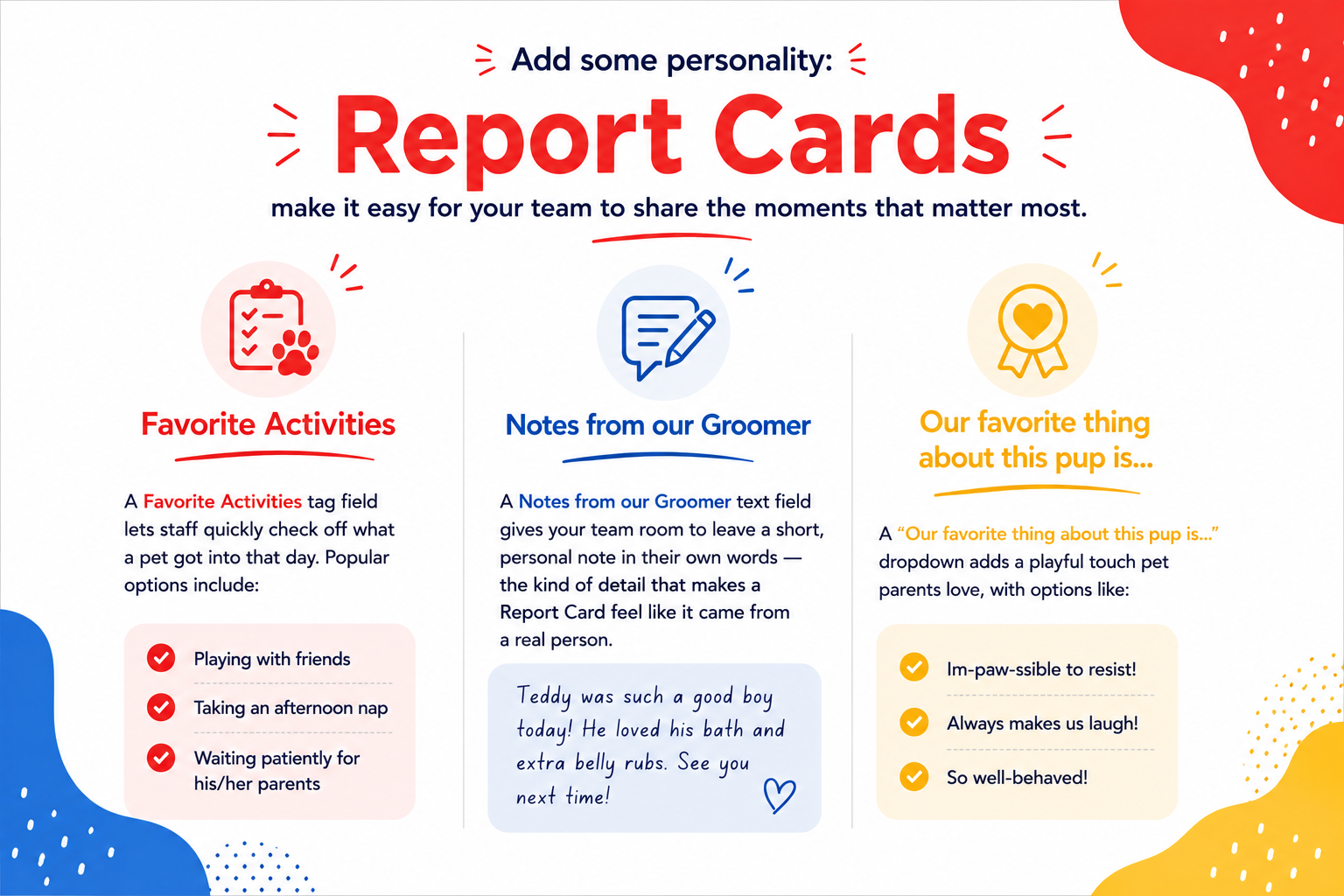
Add a field from the Toolbox, then click the pencil icon to rename it or edit its options. Choose a Reservation and Attach Pictures/Video can't be customized. Any field left blank simply won't appear on the card your customer receives.
Create A Report Card:
Only pets that are checked in, or were checked out earlier today, appear on this page. Start one:
- Animal Profile — Reservations » Actions Menu » + Create Report Card
- Dashboard — the blue + icon under Report Card, or the Actions button
- Report Cards Tab — Report Cards » New Report Card
For a past reservation, use the same Actions Menu » + Create Report Card option on the pet's profile, even after checkout.
Add Photos In Bulk:
Go to Report Cards » Bulk Photo Upload, drag and drop files (or select from your library on mobile), then tag every pet in each photo — tagging automatically adds the photo to that pet's most recent report card. Add captions and save. Videos are best added directly to a report card rather than uploaded in bulk.
View, Edit, and Send:
- View a report card from the left nav (Report Cards » View Report Cards), the Animal Profile's Report Cards tab (with a location filter for multi-location accounts), or the Dashboard's Report Card column.
- Edit any time before checkout, from those same three places. Once a pet checks out, the card is locked.
- Send from the Report Cards tab, Reservation Details page, or Animal Details page, individually or all at once via Send All via Email/SMS from the Report Cards tab.
When to Send a Report Card:
There’s no wrong time to brighten a pet parent’s day with an update, but some moments offer especially great opportunities to make an impact.
Here's when it tends to make the biggest difference:
- After a pet’s first visit — reassure new customers that they made the right choice
- At the end of a boarding stay — a thoughtful recap gives pet parents a warm, fuzzy feeling and a reason to rebook
- Midday during daycare — ease any lingering guilt or anxiety with a charming peek into their pet’s day
- Right after grooming — a thoughtful recap gives pet parents a warm, fuzzy feeling and a reason to rebook
- After a training class — celebrate progress and reinforce the value off your services
This is a quick habit that, once it sticks, turns a one-time setup into real customer loyalty
Additional Resources:
Check out this short clip for more information about getting started with Gingr’s Report Cards feature.
Why Use Pet Report Cards?
Pet parents love getting updates about their furry family members. And for businesses, these updates do more than make someone smile:
- Build customer loyalty — consistent communication increases trust and repeat visits
- Encourage word-of-mouth — share-worthy updates can lead to social posts and referrals
- Enhance professionalism — Report Cards show that your staff is attentive, detail-oriented, and committed
- Stand out from the pack — while many facilities offer photos, not all provide structured updates with insight — that’s where you shine
Use Report Cards to capture meaningful milestones or even just a single goofy grin. It’s a simple gesture that can strengthen your customer relationships and spark repeat bookings!
With Gingr, you get a suite of pawesome features to support every aspect of your pet business. And you can manage all of them under one roof, leading to a more streamlined system for both your staff and customers. When you make the customer experience more convenient and enjoyable, you’ll boost your retention and enhance your reputation.
Ready to start using pet Report Cards and Gingr’s other great features? Get a demo today!


Subscribe to the Gingr Blog